Adobe BG Remover: Remove Background & Objects From Photos (Manual Photoshop Editing Guide)
Adobe BG Remover Manual Editing হল ছবির ব্যাকগ্রাউন্ড ও অবাঞ্ছিত অবজেক্ট দূর করার সবচেয়ে নিখুঁত ও নির্ভরযোগ্য পদ্ধতি। এটি সম্পূর্ণ ম্যানুয়াল হওয়ায় আপনি ছবির edge, shape এবং details-এর উপর পুরো নিয়ন্ত্রণ পান।
Photoshop দিয়ে সঠিকভাবে background remove করতে হলে clean edge, perfect cut-out, zero blur এবং natural shadow খুবই গুরুত্বপূর্ণ। এই গাইডে আপনি জানতে পারবেন—
-
Adobe BG Remover কীভাবে কাজ করে
-
Pen Tool দিয়ে 100% manual background remove
-
Object remove / unwanted area clean-up
-
eCommerce product photo perfect করার নিয়ম
-
কেন manual editing, AI tools-এর থেকে বহু গুণ ভালো
-
এবং শেষে—আমাদের professional Adobe BG Remover service কীভাবে আপনাকে সাহায্য করতে পারে
What Is Adobe BG Remover?
Adobe BG Remover হলো Photoshop-based একটি manual editing process যেখানে Pen Tool ব্যবহার করে ছবির background সঠিকভাবে কেটে ফেলা হয় এবং smooth edge outline তৈরি করা হয়।
অন্যদিকে AI tools যেমন remove.bg, PhotoRoom বা Canva প্রায়ই—
চুল বা soft edge নষ্ট করে
product-এর shape বিকৃত করে
smooth curve তৈরি করতে পারে না
transparent edge রেখে দেয়
তবে, Pen Tool দিয়ে করলে প্রতিবারই perfect selection, smooth curve এবং clean outline পাওয়া যায়।
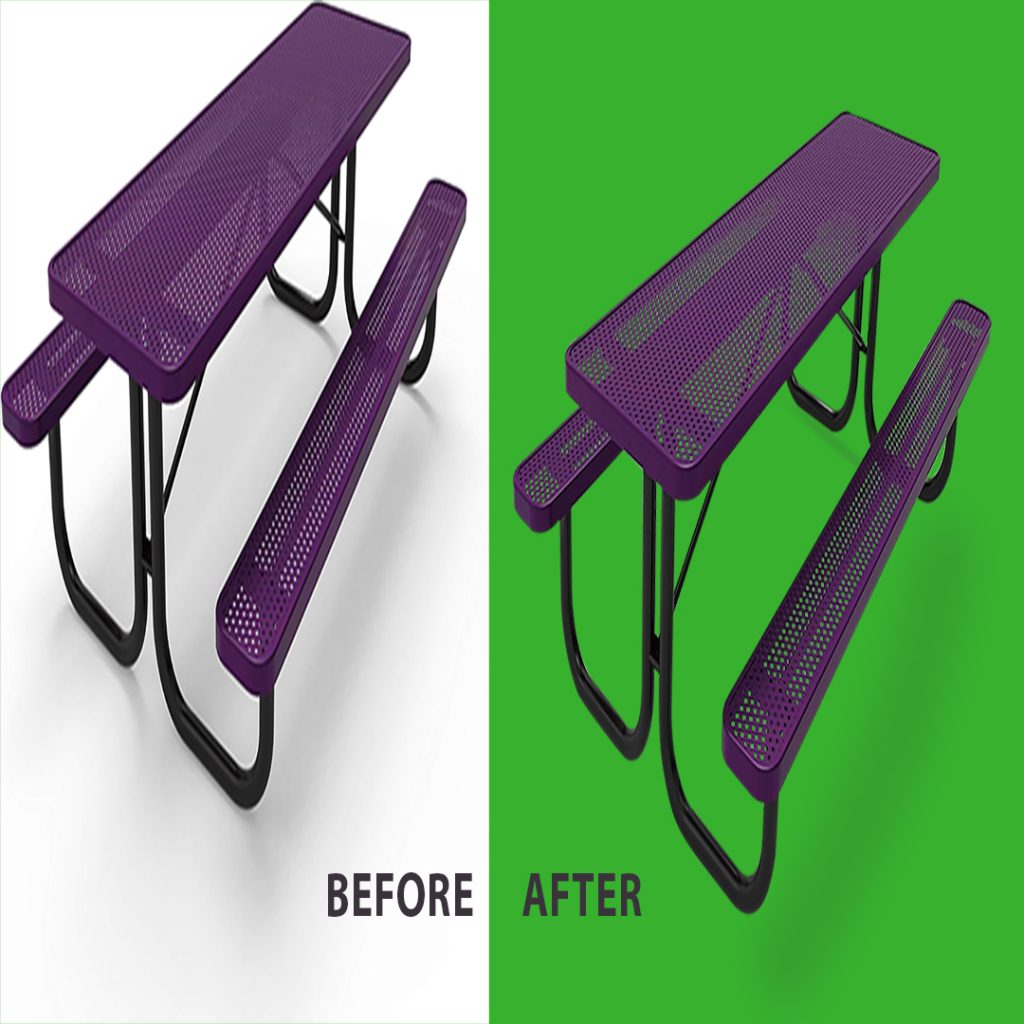
Why Manual Pen Tool Background Removal Is Better Than AI?
1. Smooth & Accurate Edge
Pen Tool-এর curve আপনি নিজের মতো করে adjust করতে পারেন।
ফলে, edge সর্বদা থাকে clean এবং natural।
2. Zero Blur Cut-Out
AI প্রায়ই blur বা rough edge রেখে দেয়।
অন্যদিকে, Pen Tool gives:
Razor sharp edges
Pixel-perfect accuracy
Clean outlines
3. Complex Shapes Handling
Jewelry, hair strands, dress edges, product curves, hand & finger shape—এসব AI টুল cleanly কাটতে পারে না।
কিন্তু, manual editor খুব সহজে manage করতে পারে।
4. Best for eCommerce Photos
Amazon, Shopify, Daraz-এর মতো মার্কেটপ্লেসে product approve করাতে professional manual cut-out খুবই জরুরি।
Manual editing নিশ্চিত করে consistent quality।
Step-by-Step: How to Remove Background Using the Photoshop Pen Tool
Step 1 — Open Your Image in Photoshop
File → Open
High-resolution image নিলে ফলাফল আরও ভালো হয়।
Step 2 — Select the Pen Tool
Toolbar → Pen Tool (P)
এখন anchor point বসিয়ে object-এর চারপাশে smooth path তৈরি করবেন।
Step 3 — Create the Path
Object-এর border ধরে ধরে anchor point দিন।
Curve হলে handles ব্যবহার করে smooth curve তৈরি করুন।
Tips:
-
Zoom in করে কাজ করুন
-
Hard edge object → long points
-
Curved object → short points
Step 4 — Convert Path to Selection
Paths Panel → Right click → Make Selection → Feather 0.5 (optional)
Step 5 — Remove Background
আপশনগুলো—
-
Delete background
-
Layer Mask
-
Transparent PNG export
Step 6 — Save Your Final Image
-
PNG → Transparent background
-
JPEG → White background
-
WebP → Website speed optimization
Object Removal (Professional Method)
আপনার ছবিতে অবাঞ্ছিত মানুষ, অপ্রয়োজনীয় জিনিস, distraction, spot বা dust থাকলে আমরা Pen Tool, Clone Stamp এবং Healing Brush-এর combination ব্যবহার করে clean, natural এবং premium-quality object removal করি।
যা যা clean remove করা যায়:
Unwanted objects, people
Wires, signs, logo, watermark
Random items
Background distractions
Benefits:
Jewelry, product, portrait—সবকিছুতেই perfect edge রাখা হয়
Hard ও soft edges natural থাকে
Original shape নষ্ট হয় না
eCommerce–standard clean background তৈরি হয়
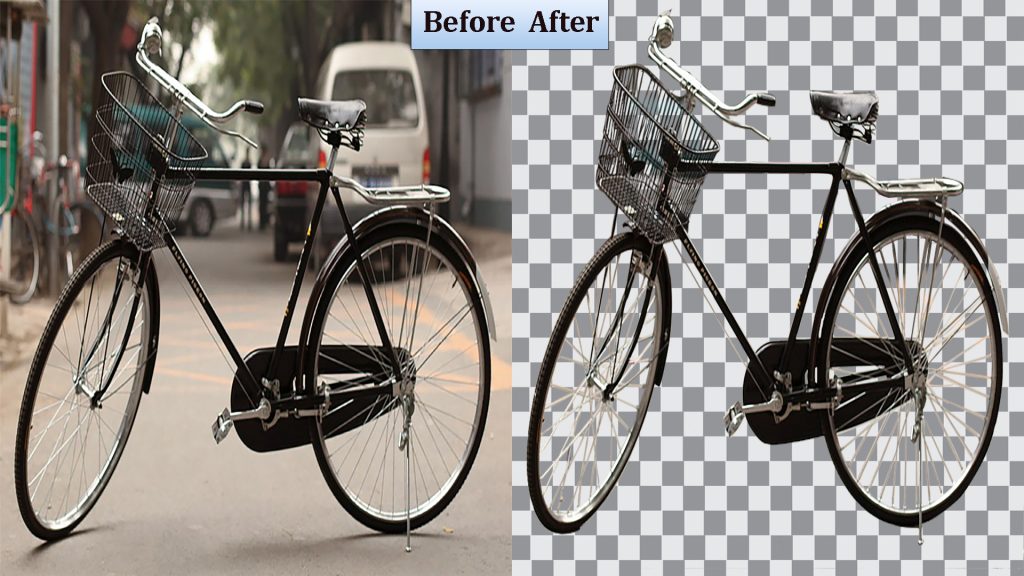
eCommerce Product Fix & Clean-Up
অনলাইনে বিক্রির জন্য product images অবশ্যই clean, distraction-free এবং professional হতে হবে।
Our eCommerce Editing Includes:
-
Background remove (white/transparent)
-
Object/person remove
-
Upscale for high resolution
-
Color correction & enhancement
-
Product centering + proper dimensions